




An AI invoice generator can turn job details into a draft invoice. For contractors, the important part is billing the approved work once, subtracting payments correctly, and keeping a record you can track. A good-looking PDF alone doesn't establish any of those things.
If you need a single document, a generator or general assistant may be enough. If you need approved estimates, change orders, deposits, and payment status connected to the same job, evaluate that complete workflow.
This is a Dave-authored guide based on documentation checked November 1, 2026. We haven't benchmarked the products below. The billing example is fictional and uses USD; it demonstrates the arithmetic before applicable taxes, not local invoice or tax requirements.
Choose the shortest path to a correct invoice
| Starting point | Sensible route | What to check |
|---|---|---|
| A few agreed line items and one invoice to create | A dedicated invoice generator | Customer, currency, rates, terms, and a saved copy |
| Notes or a spreadsheet that need organizing | ChatGPT or another assistant, followed by your billing system | Whether it produced a document or a saved invoice record |
| An accepted estimate already in Dave | Convert the estimate to an invoice | Accepted version, current billing stage, and payments already received |
| An old invoice spreadsheet you want to recreate in Dave | Attach the file in Ask Dave | Saved values, imported line items, and the resulting draft total |
| Repeated work across an existing billing app and other tools | An agent with appropriate access | Correct account, supported actions, duplicate prevention, and final record |
Don't regenerate an approved estimate from memory just to invoice it. Reusing the accepted scope is often simpler and more reliable than asking AI to invent the invoice again.
What the alternatives actually offer
Invoice Generator documents a workflow where an assistant prepares a prefilled invoice link for you to review. It also offers an optional connection that allows supported assistants to save documents directly into an account. That is a useful option when you want to keep the assistant you already use and prepare straightforward billing documents.
Eonebill's contractor page describes invoices from job descriptions, separate labor and material items, progress billing, change orders, Stripe payment links, and reminders. If invoicing is your primary requirement, test those features against your actual billing example rather than paying for a larger system you don't need.
ChatGPT Work can create documents and spreadsheets using supplied files and tools. For invoice preparation, define the output: a document for manual entry, or a draft saved through an available connection. Don't assume either outcome without checking it.
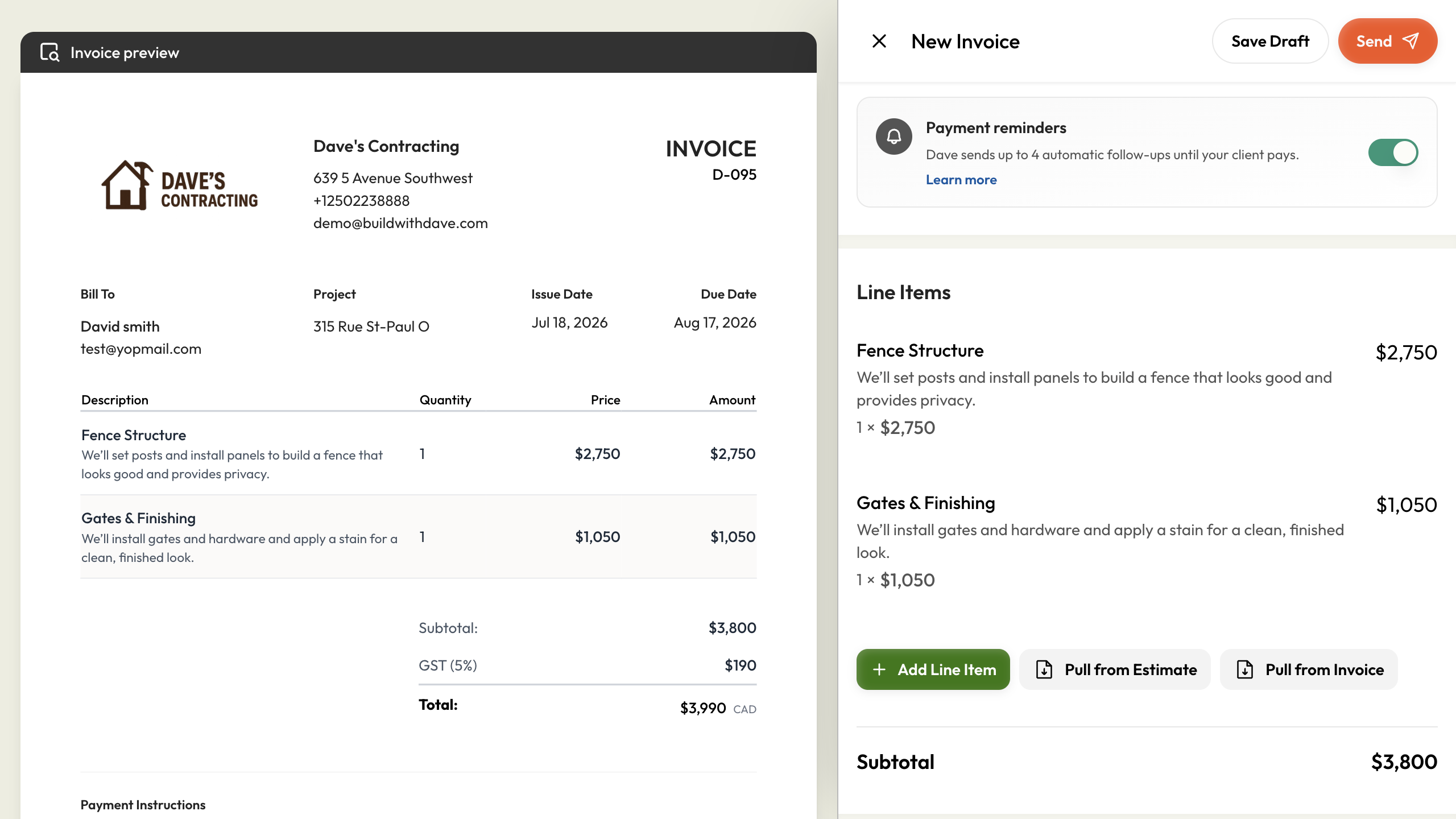
Dave's relevant difference is the project record around the invoice. Ask Dave supports invoice drafting from attached spreadsheets, and the normal workflow can convert an accepted estimate. Dave also provides payment tracking and reminders. Those billing features are useful whether the invoice started with AI or with manual entry.
Example: final invoice for a deck job with a deposit
The agreed deck work is $8,000. The customer later approves a $650 change order. You've finished all of that work and received a $2,000 deposit. There are no other progress invoices, payments, credits, or unapproved extras in this example.
| Record | Amount | How it affects this bill |
|---|---|---|
| Accepted original scope | $8,000 | Included in completed work |
| Approved change order | $650 | Included once, with its reference |
| Total completed work before tax | $8,650 | Original scope plus approved change |
| Paid deposit available to apply | $2,000 | Reduces the remaining amount owed |
| Remaining amount before tax adjustments | $6,650 | $8,650 minus $2,000 |
The deposit is money already received. Applying it to the final bill isn't a second payment and isn't another $2,000 sale. Your invoice's tax presentation depends on your location and records; don't copy this pre-tax exercise as a tax calculation.
In Dave, use the documented deposit application workflow, then check Applied Deposit and Balance Due in the preview. Don't also record that same money as a new payment on the final invoice.
If there were earlier regular invoices for completed stages, this example would need changing. Reconcile what was already billed before preparing the remaining bill. The progress invoicing guide explains that separate workflow.
Give the AI a billing instruction, not just a job description
“Invoice the deck” leaves too much open. It doesn't say which estimate, which changes, or whether you're billing the whole job.
Use a request like this with the relevant records:
Prepare a draft final invoice for the deck project using accepted estimate E-104 and approved change order CO-02. The original scope is $8,000 and the approved change is $650, both before tax. A $2,000 deposit has been received and is available to apply. No other invoices or payments exist for this example. Show the work total and remaining amount separately. Do not record a new payment or send anything. Flag missing invoice dates, tax settings, terms, or customer details for my review.
This is a sample instruction, not a claim that every tool supports these records or applies deposits through chat. If the assistant can't perform a step, complete it in the billing app. Review the actual invoice after the conversation.
For a real job, supply the agreed due date and confirmed tax settings. Ask the assistant to preserve them instead of selecting plausible defaults. Leave unsigned change requests out of the approved total until you've resolved them with the customer.
Review the draft in this order
- Correct client and project. Check the recipient and site reference, especially when one customer has several jobs.
- Correct scope and version. Compare the invoice with the accepted estimate and approved changes.
- Correct billing stage. Confirm whether this is a deposit request, stage bill, or final bill.
- Correct credits and payments. Reconcile paid deposits, previous invoices, partial payments, and credits without counting anything twice.
- Correct amounts and terms. Check line totals, currency, applicable taxes, due date, and payment instructions.
- Correct status. Save the draft, preview it, then send through the intended workflow. Confirm the sent record afterward.
When Grok Bot, Muse, or Dots could help
An agent can be useful when the work surrounding billing is scattered: finding the latest approved document, organizing correspondence, or preparing a list for review. Their access to apps doesn't prove a specific invoice has been created, sent, or paid.
Use a narrow trial: one completed job, one billing account, and one draft. Ask for a link or reference to the saved invoice. Check that repeating the request doesn't produce a second bill for the same work. Our AI tools comparison covers the documented differences between these agents.
We haven't verified a native Dave integration for these external agents. Use Dave's documented product workflow, or verify your chosen agent's actual connection before relying on it for billing.
Invoices sent and invoices paid are different things
Keep payment status in the billing system, backed by the actual payment record. A customer opening an invoice isn't a payment. A draft reminder isn't a message that has been sent.
Before a follow-up, check recent payments and any agreed payment arrangement. If the app already sends automatic reminders, avoid adding a second agent that sends another message for the same balance. Dave's payment reminder guide explains its own settings; a weekly admin review helps you catch exceptions.
Common questions
Can I make an AI invoice without switching contractor apps?
Yes. A generator can prepare a document, or an assistant may work with your existing system through supported connections. Keep the official invoice and payment record in the system you use to track billing, and check the saved result.
Can Dave import an invoice from Excel?
You can attach a supported Excel or CSV file in Ask Dave and request an invoice draft. Dave uses saved values; spreadsheet formulas and styling don't carry over. Check the import instructions and compare the draft with the original before sending.
Is AI necessary for every invoice?
No. If the accepted estimate already contains the correct work, converting it may be the easiest route. AI is most useful when it reduces preparation or review work without creating a second version you have to reconcile.